Mentor Mentee’s new AI-powered insights and enhanced reporting give managers a faster way to understand team progress, mentor activity, and what may need attention.
This guide walks through the new features available and how to use them.
Team Snapshot
At the top of the Manager dashboard, the Team Snapshot provides an automatic summary of activity across your team.
It can surface information such as:
- Mentee pathway progress
- Outstanding reps waiting for review
- Recent activity
- Areas that may need follow-up
The snapshot is designed to give you a quick read on what is happening without requiring you to open individual profiles or run additional reports.

What to Look For
Use the Team Snapshot as a starting point when you log in.
Look for:
- Mentees who may be progressing more slowly
- Large numbers of pending reviews
- Changes in recent activity
- Items that may require a manager or mentor follow-up
Ask Questions About Your Team
The Ask function allows you to ask questions about the information within your Mentor Mentee account.
When you open Ask, suggested questions help you get started and show the types of information you can quickly access.
Examples may include:
- Who is closest to finishing their certification?
- How do I assign a mentee to a mentor?
- What's my team's completion rate?
- What's blocking Sam Akin's progress?
- How many reps has my team logged this week?
- How do I add a mentor?
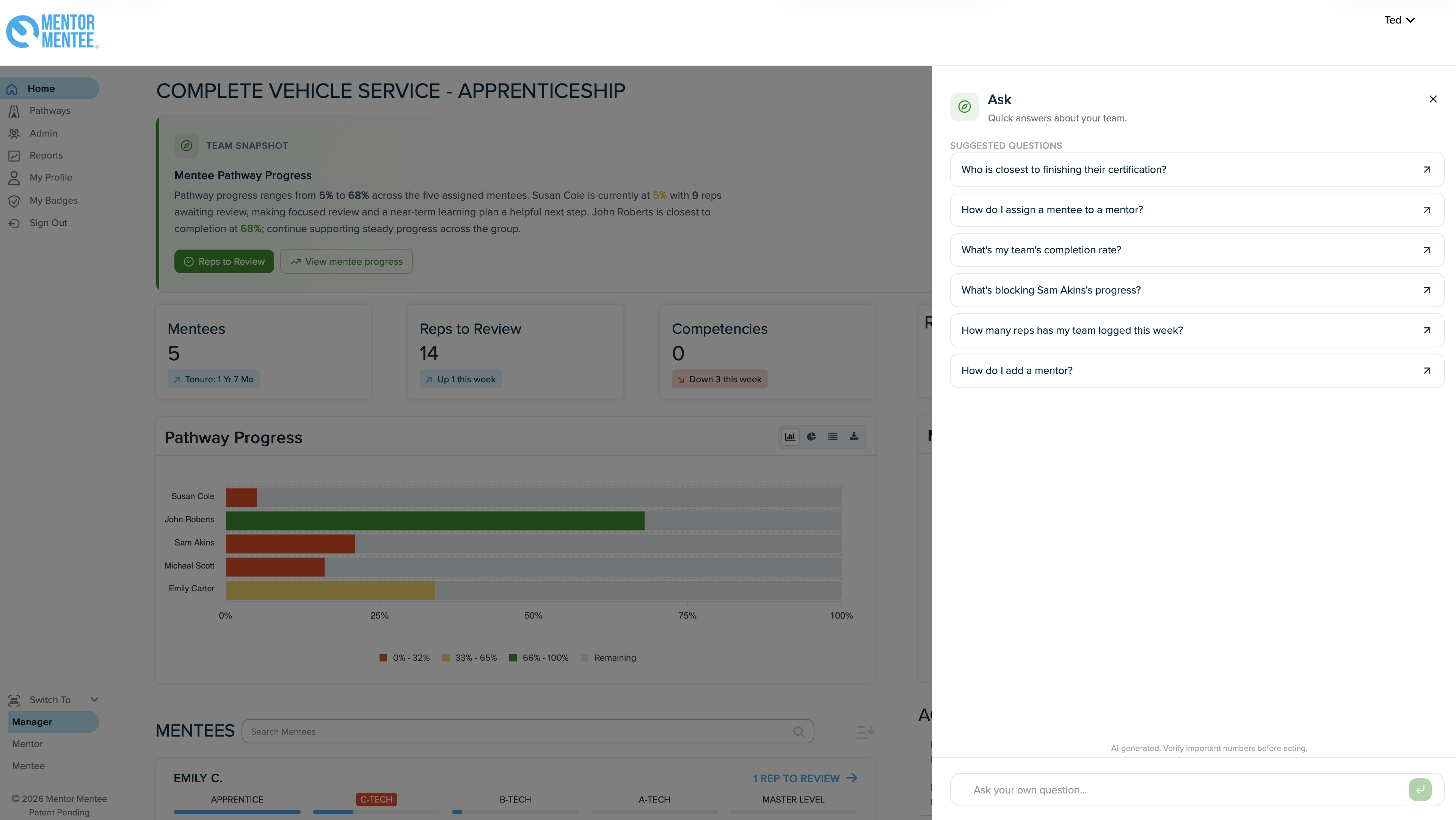
You can also type your own question based on what you want to understand about your team.
Get Answers in Context
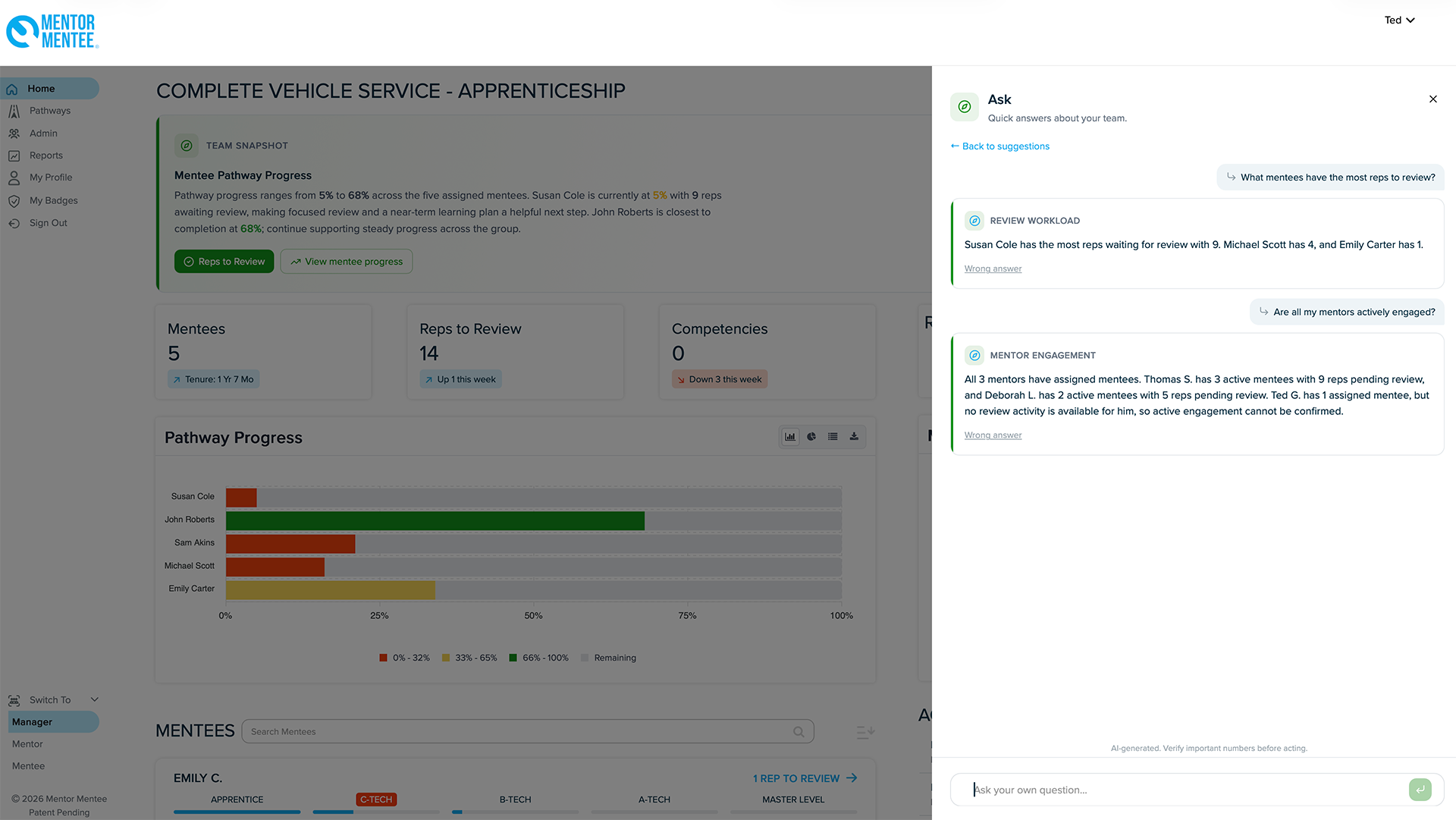
Once a question is submitted, Mentor Mentee brings together the relevant information and provides an answer with additional context when helpful.
For example, a manager could ask which mentees have the most reps waiting for review and quickly see where review workloads are building. Or they could ask whether mentors are actively engaged and get a snapshot of activity across the team.
Pathway Progress
The Pathway Progress chart provides a visual view of every mentee assigned to your team.
Each horizontal bar shows the mentee’s current pathway completion percentage and how much remains.
Progress is color-coded:
- Red: 0–32% complete
- Yellow: 33–65% complete
- Green: 66–100% complete
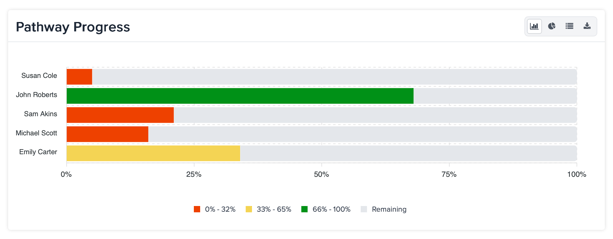
Managers can use this chart to:
- Compare progress across the team
- Quickly identify mentees who may need additional support
- See who is nearing pathway completion
- Click into an individual mentee for more detailed information
Instead of opening multiple profiles, you can see where the entire team stands in one view.
Mentor Review Status
The Mentor Review Status chart shows how mentors are keeping up with reps submitted by their mentees.
For each mentor, you can see:
- Reviewed reps
- Pending reps
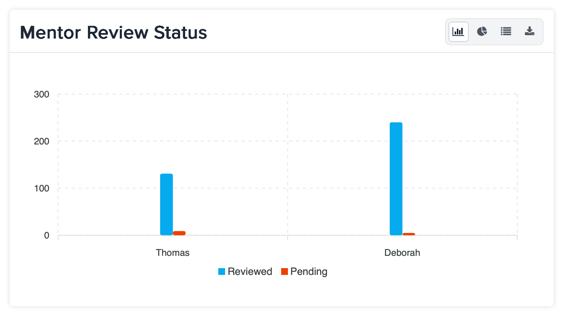
This gives managers a quick view of review workload and helps identify where reps may be waiting longer than expected.
Use this chart to:
- See where pending reviews are accumulating
- Identify mentors who may need a follow-up
- Monitor review activity across the team
- Help keep mentee development moving forward
Putting It All Together
The new Manager dashboard gives you several ways to understand what is happening across your team without reviewing each technician individually.
Use the Team Snapshot for a quick overview.
Use Ask when you have a specific question.
Use Pathway Progress to monitor mentee development.
Use Mentor Review Status to keep an eye on review activity and follow-through.
Together, these tools give you an instant clear view of team progress and help you focus your attention where it matters most.
For additional questions or concerns, feel free to contact us. Our team is happy to help!